How to check stats by Screens
If you have a 3rd party CMS or Digital Signage instead our solution, you will be able to check how much revenue you are generating through our SSP. Take a look.
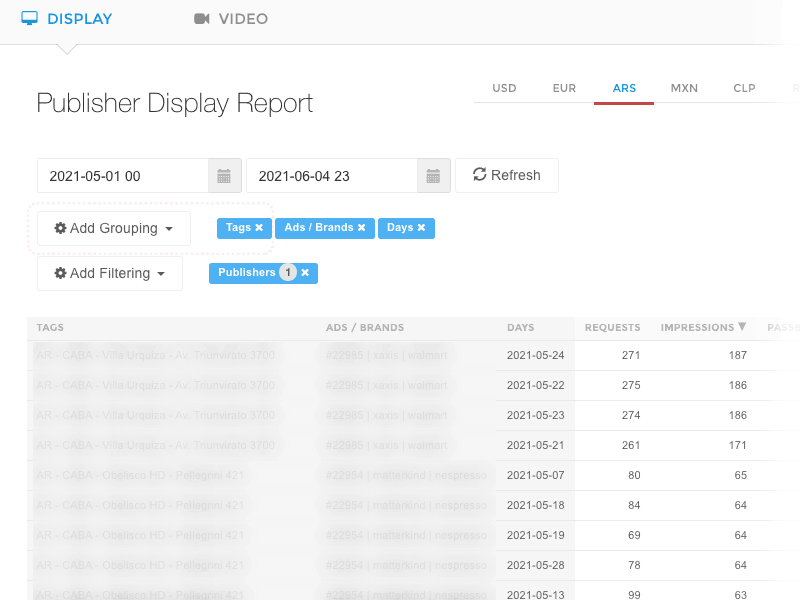
Once you are logged into our SSP Exchange** platform, **You will be able to check your revenue by clicking into Reports link located at the left of the screen. Then follow these steps to check Revenue by Screen.
-
On Display Tab, click on the default currency for your country.
-
Choose the period you want to check by pressing the calendar icons.
-
Then, click on Add Grouping button, and pick "Tags". Which are "screens".
-
Then, after loading you will get a table with all the Screens listed.
You can sort by Impressions or Revenue to get a well ordered list.
How to Export the information: At the top right of the table, you'll find a button with an "excel" icon. Click on it and you will start downloading a CSV document.
More ideas for programmatic DOOH teams
Continue with practical reads on audience intelligence, inventory strategy and measurable real-world media.

Programmatic DOOH Glossary: A Practical Guide to Outdoor Advertising
The out-of-home advertising (OOH) ecosystem and its programmatic version—programmatic DOOH or pDOOH—use technical terms that can confuse advertisers, planners, and creatives. This glossary clearly explains the most relevant concepts so you can plan, buy, and measure outdoor advertising campaigns more effectively.
How to add a VAST Tag in a pDOOH Campaign
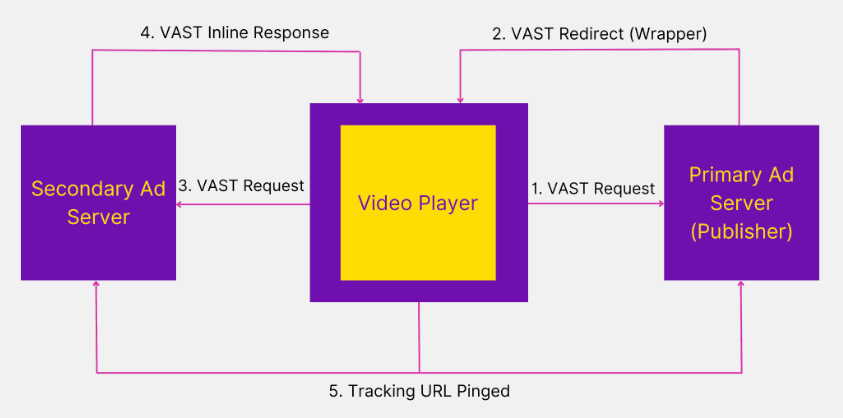
In this article, we will explore the powerful capability of our Digital Out of Home (DOOH) platform to upload VAST-compliant advertisements. Discover how to create and edit campaigns, select specific screens, and leverage the benefits of VAST as a medium/format of advertising in the DOOH environment.
How to trade by impressions or seconds
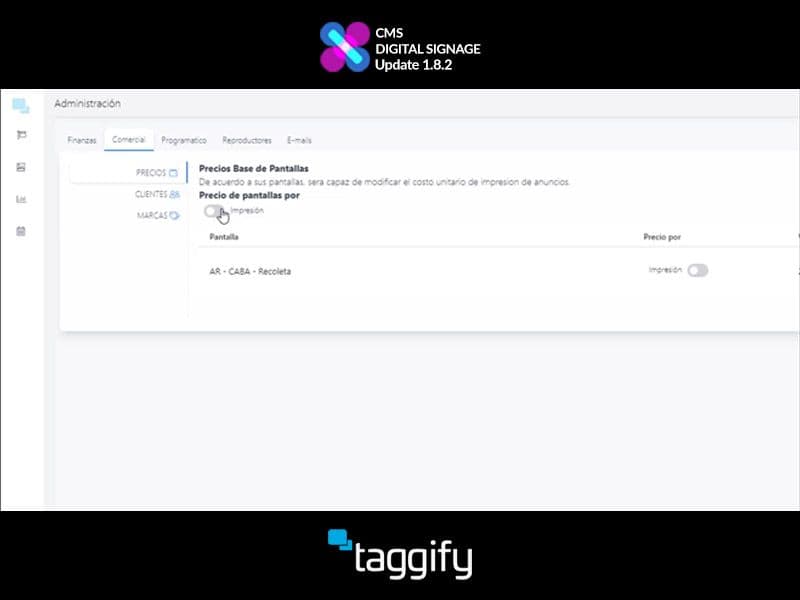
In the last update 1.8.2 of Taggify's Digital Signage, developers worked and optimizeed several things and trading by impressions or seconds was one of them.